


BlackVue Cloud Web Viewer
Understand current FLEETA access, connected-camera setup and the earlier Cloud dashboard
Check browser access before setting up a camera
Use FLEETA for BlackVue's current browser-based Web Viewer. Its current plan table lists Web Viewer access for Free, Starter, Standard, Pro and Enterprise. Features and allowances differ between those plans. A standard BlackVue Cloud account, a Cloud-capable camera and local SD-card playback are different things. Do not choose a camera or subscription on the assumption that every Cloud account includes browser access.
If you need to review recordings already on the memory card, use the BlackVue Windows and Mac SD Card Viewer guide. You do not need a remote Cloud session to start that local task. Our BlackVue app overview covers the phone option; use BlackVue's current app instructions for your exact camera.
| What you want to do | Start here | What must be available |
|---|---|---|
| Review files from the card | Supported Windows/Mac desktop Viewer | Correct camera files, compatible reader and software. |
| Connect from your phone | BlackVue app and model instructions | The appropriate local or Cloud connection for the task. |
| Use a remote browser dashboard | Current FLEETA/Web Viewer access | Eligible account and plan, supported camera/firmware, internet and power. |
For browser access, begin with the official FLEETA site and its account sign-in. Follow the current service route and plan guidance rather than an older launcher's Cloud button. Keep account credentials private and use a trusted device.
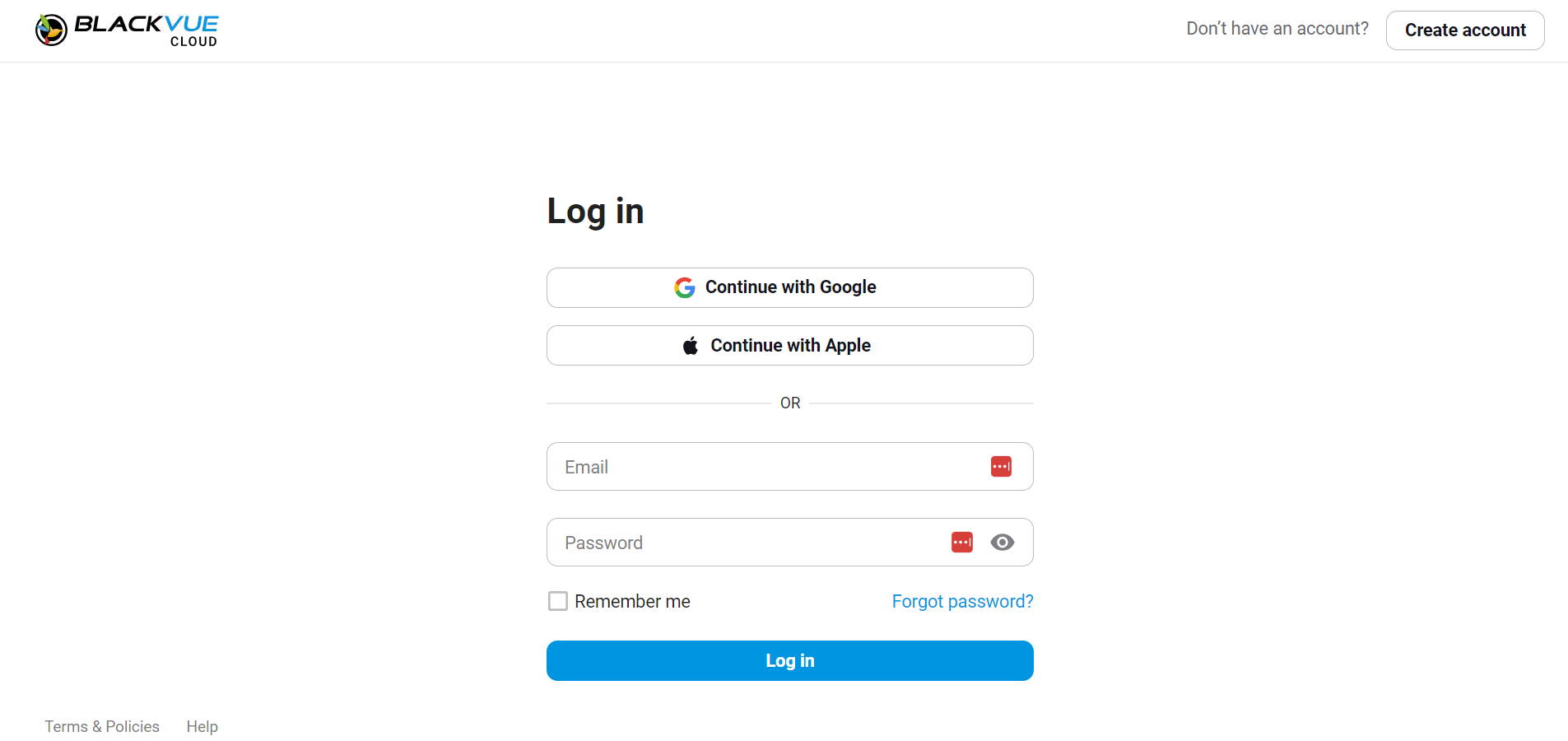
BlackVue replaced the earlier Web Viewer with FLEETA on March 31, 2025. The screenshots below explain the earlier dashboard; use a current supported browser and the current service controls for your account.
Get the camera online first
We recommend confirming the camera's exact model, firmware and account eligibility before changing its network setup. A compatible camera needs a working internet connection and power for remote features to be available. Built-in LTE models still need the appropriate service, coverage and activation; other configurations can require a supported connectivity accessory or hotspot.
- Follow the current FLEETA registration instructions with the appropriate Owner or Admin permissions. You can preregister a camera in the Web Viewer, but it still needs near-camera activation in the FLEETA app before Cloud connection.
- Configure its supported Wi-Fi or cellular connection and confirm that it appears online.
- Check that the account has the browser or fleet access you need, then open the official dashboard.
- Test the particular function you expect to use and confirm where an important recording is actually saved.
A parked camera that has shut down cannot provide an ongoing remote connection. Parking power, coverage and the selected recording mode all affect what is available. Keep important recordings separately instead of relying on an online status indicator alone.
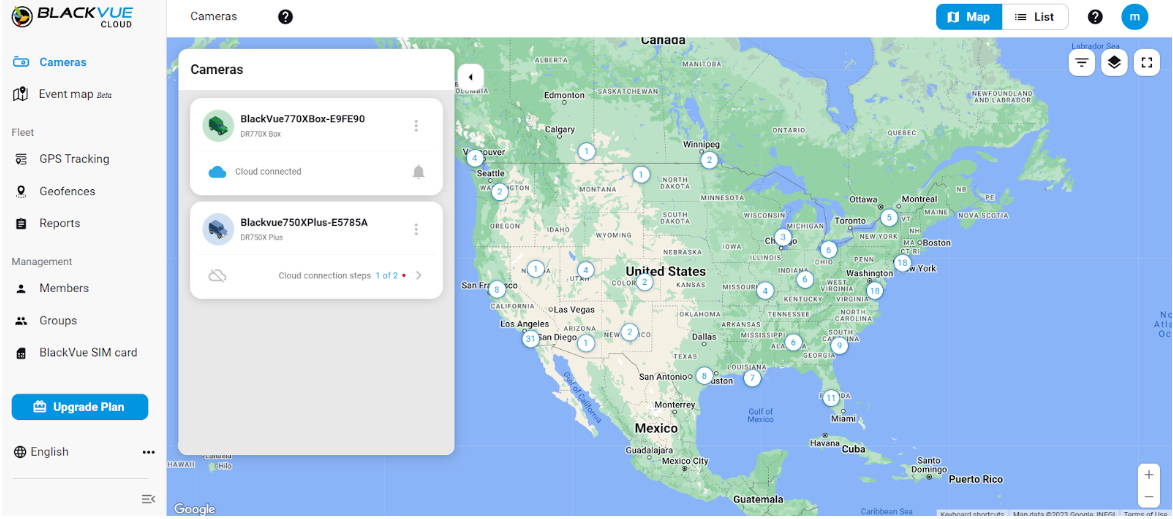
Add and manage the right camera
In a supported camera list, use a clear vehicle or camera name so you can tell similar installations apart. Confirm that you selected the right device before opening its playback, live view, location or report tools.
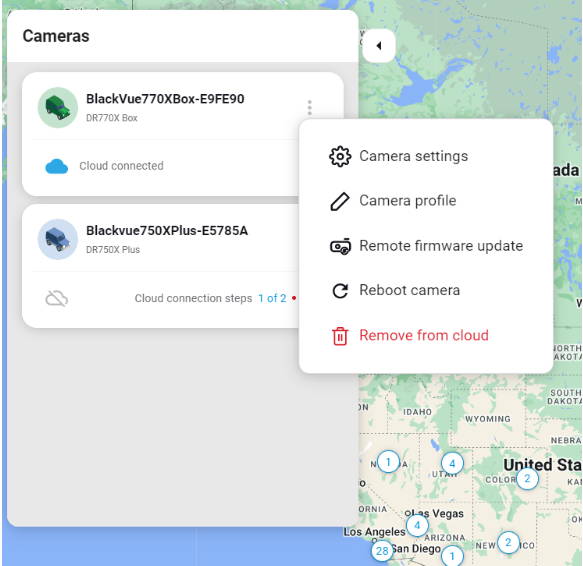
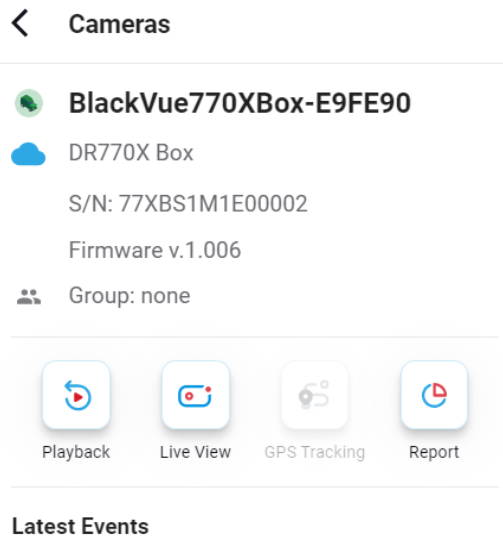
The earlier dashboard shows profile and settings controls beside its camera functions. Availability depends on the camera, firmware, account permissions and current service. Follow the exact model's instructions for a remote firmware update, reboot or removal from the account. These are maintenance actions, not necessary steps just to look at a recording.
If you see a recording in Playback or an event list, open the relevant time and camera channel. Live View shows an available live stream; it does not establish that the same footage has been stored. For a multi-channel model such as the DR770X Box, check the selected front, rear or interior channel and its supported remote functions.
For new hardware, compare BlackVue dash cams and their exact connectivity accessories. We can help you match the camera, connection and parking-power setup to the task rather than assume every model has the same Cloud tools.
Events and Event Map serve different purposes
Your camera's latest-event list is where you look for its available event notifications and recordings. A notification is a reason to inspect the file and context; it is not proof of what happened or a guarantee that a readable plate or face was captured.
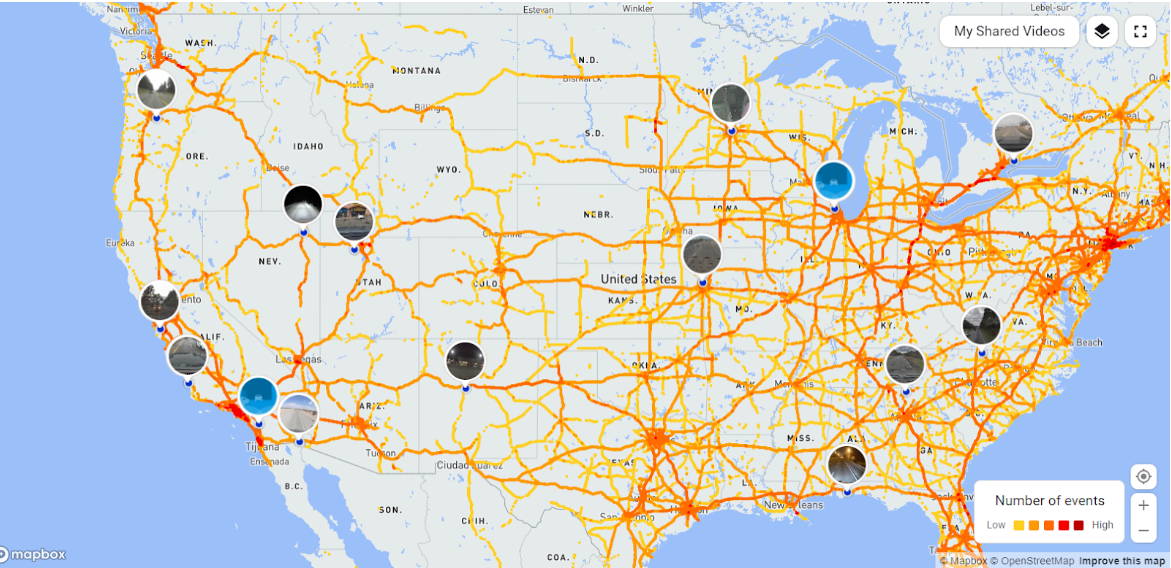
BlackVue Event Map was described by BlackVue as a public sharing feature in 2022. It is separate from private fleet trip maps; this illustration does not establish that the same public Event Map is available in the current FLEETA dashboard. Shared event information can provide context about places where events were recorded. Do not treat event clusters or road colours as a complete traffic report, a safe-route recommendation or a record of every incident.
Location sharing and private vehicle tracking need deliberate account and camera choices. Review the current sharing controls and permissions before enabling them. If map information is missing, check the supported feature, recorded location data, connection and account access before assuming the video is missing too.
Fleet tools: location, geofences and reports
Current FLEETA plans separate live location from retained GPS history. Geofence setup and alerts are Web Viewer features for Pro and Enterprise. A fleet dashboard can help an authorized manager organize supported cameras and review the location or event information the system provides. GPS tracking, geofences and reports depend on the exact service, camera, permissions and data available. Use time stamps and the recording itself to put an alert into context.
A geofence is a configured area used for supported location alerts. It cannot prevent a vehicle from entering or leaving that area. Reports summarize available information; they do not replace a review of the original recording or establish driver fault.
Our fleet setup advice can help you plan the hardware. For a fleet with several vehicles, start by confirming which people need viewing or administrative access and which cameras must be grouped together. Keep administrative rights limited to the people who need them.
The current plan comparison lists Voice Call for Standard, Pro and Enterprise. Two-way communication also depends on the camera and connection. Use communication controls only when it is safe; the availability of a voice feature does not make interacting with the system while driving safe.
Read the historical chart as text
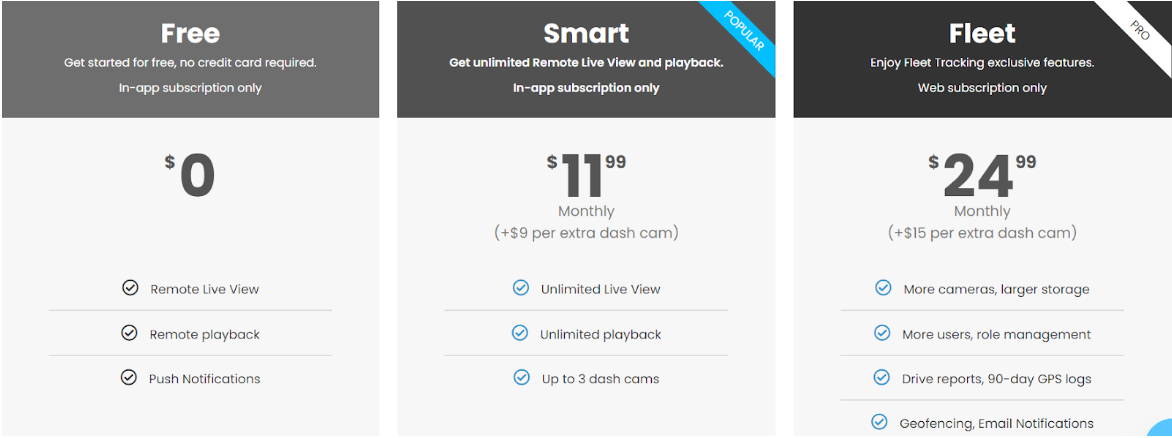
This describes the older chart only. It is not current pricing, billing advice or a promise of these allowances.
- Free: $0; no credit card required; in-app subscription only. Lists Remote Live View, Remote playback and Push Notifications.
- Smart: $11.99 monthly, plus $9 per extra dash cam; in-app subscription only. Lists Unlimited Live View, Unlimited playback and up to 3 dash cams.
- Fleet: $24.99 monthly, plus $15 per extra dash cam; web subscription only. Lists more cameras and larger storage, more users and role management, drive reports and 90-day GPS logs, and geofencing with email notifications.
All labels, prices, fees, quotas and feature descriptions above are historical. Read the current FLEETA plan comparison before choosing a plan.
Use current plan information for a purchase decision. Storage, retention, camera limits and paid features are service entitlements, not permanent camera specifications. The earlier plan artwork is retained as historical context and is not a current price or free-storage offer.
Account permissions, groups and language
Where your current plan provides them, member and group controls let an administrator organize access. Check a person's role before granting permissions, and review shared access when a driver or vehicle leaves the fleet. SIM management applies only to supported cellular service and account arrangements.
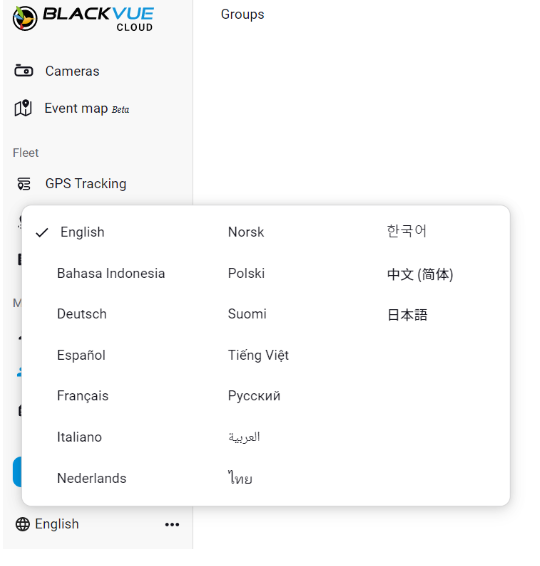
Use the available language preferences to make the dashboard easier to read. Changing a display language does not change the camera's recording capabilities, account limits or who can access a device.
If an option shown in an older screenshot is missing, confirm the service, plan, camera firmware and permissions before changing camera settings. Use your current plan information for camera, member, storage and retention limits.
Confirm the exact model and firmware
Cloud capability alone does not establish that every Web Viewer function will work. Older examples in this guide refer to DR970X, DR770X, DR750X and DR900X generations; do not transfer their menus or account eligibility to another model. DR650GW and DR650S also need their own legacy support check rather than a blanket promise of current browser access.
Before choosing a camera, tell us whether you need local playback, remote live view, event access or fleet reporting. We will help you check the exact model and current service. Back up important recordings before a firmware or settings workflow that can erase them, and follow the manufacturer's model-specific procedure.
Compare the connected-camera setups
The three models pictured below use different hardware and parking-power approaches. Choose from the exact configuration and current service requirements, not a general promise of continuous remote monitoring.

BlackVue DR970X LTE Plus II
Compare the exact LTE configuration, regional service and activation requirements.

BlackVue Elite 10 2CH
Compare the exact two-channel configuration and supported internet connection.

BlackVue Elite 8 2CH
Compare the exact two-channel configuration, connectivity and parking-power requirements.
Use the current product information to check supplied hardware, supported connectivity, firmware and power requirements. A cellular connection still depends on coverage and service; an internet-capable camera does not provide a recording or notification guarantee.
Common Web Viewer questions
Does every BlackVue Cloud account include browser access?
Current Web Viewer access belongs to FLEETA. Its pricing table includes Web Viewer access across its Free, Starter, Standard, Pro and Enterprise plans, with different feature allowances. An older BlackVue Cloud plan is not the same entitlement. Local card playback remains separate.
Why is the camera offline while the car is parked?
Check camera power, the supported parking setup, internet coverage and service. If the camera has shut down, it cannot maintain a remote session. Avoid repeated settings changes until you know which part of the connection is unavailable.
Does seeing Live View mean the clip is saved?
No. Confirm the recording mode and where the file is stored, then open the saved recording. Keep a separate copy of important footage and related channels.
Can I use the older screenshot prices or storage limits?
No. Use the current service's plan and billing information for your account. Historical screenshots can explain a layout, but they are not a present offer or an entitlement for every camera.
Get help with BlackVue Cloud or fleet access
Send us the full camera model, firmware, country of use, connection method and the name of the service or plan you use. Include the exact error message and whether local recordings still play. Do not send passwords, account tokens or private footage unless you have arranged an appropriate support channel.
We can help you choose a compatible BlackVue setup or narrow down a Cloud, LTE or account-access problem. Our aim is to help you find and use the information your camera can provide, with the right expectations about connectivity and recording.