


How To Install A Dash Cam With A Cigarette Lighter Adapter
Our guide to choosing your adapter, mounting your dash cam safely and planning power for driving and parking
Start with the right power connection
A cigarette lighter adapter, or CLA, is a straightforward choice when you want dash cam footage while driving without connecting to the fuse box. It connects your camera to a vehicle accessory socket, so recording depends on that socket supplying power. You may also see it called a 12V car charger or power adapter. We’ll help you choose the right connection and plan a safe installation, so you can head out with more peace of mind.
The round accessory socket and a built-in USB port are different power sources. We recommend the camera maker’s supplied or approved adapter because a USB plug can fit without providing the right voltage, power output or parking-mode support. Garmin’s camera-cable and vehicle-adapter example shows how its camera cable connects through the supplied vehicle adapter.
When a cigarette lighter installation makes sense
We recommend a socket connection when you mainly want footage while driving and have a suitable socket within reach. It also makes moving a camera between vehicles easier, although an adhesive mount may still need a replacement pad or a manufacturer-approved mounting film.
You can use a socket connection with a supported front-and-rear system too. Choose its correct power adapter and plan a safe route for the separate cable between cameras. Compare front-only cameras and front-and-rear cameras based on the coverage you need.
If you want recording after you park, start with your camera’s parking-power requirements. A socket that turns off stops the camera; one that stays powered can draw from the vehicle battery. Power alone does not necessarily tell the camera to enter parking mode.

What you need before installation
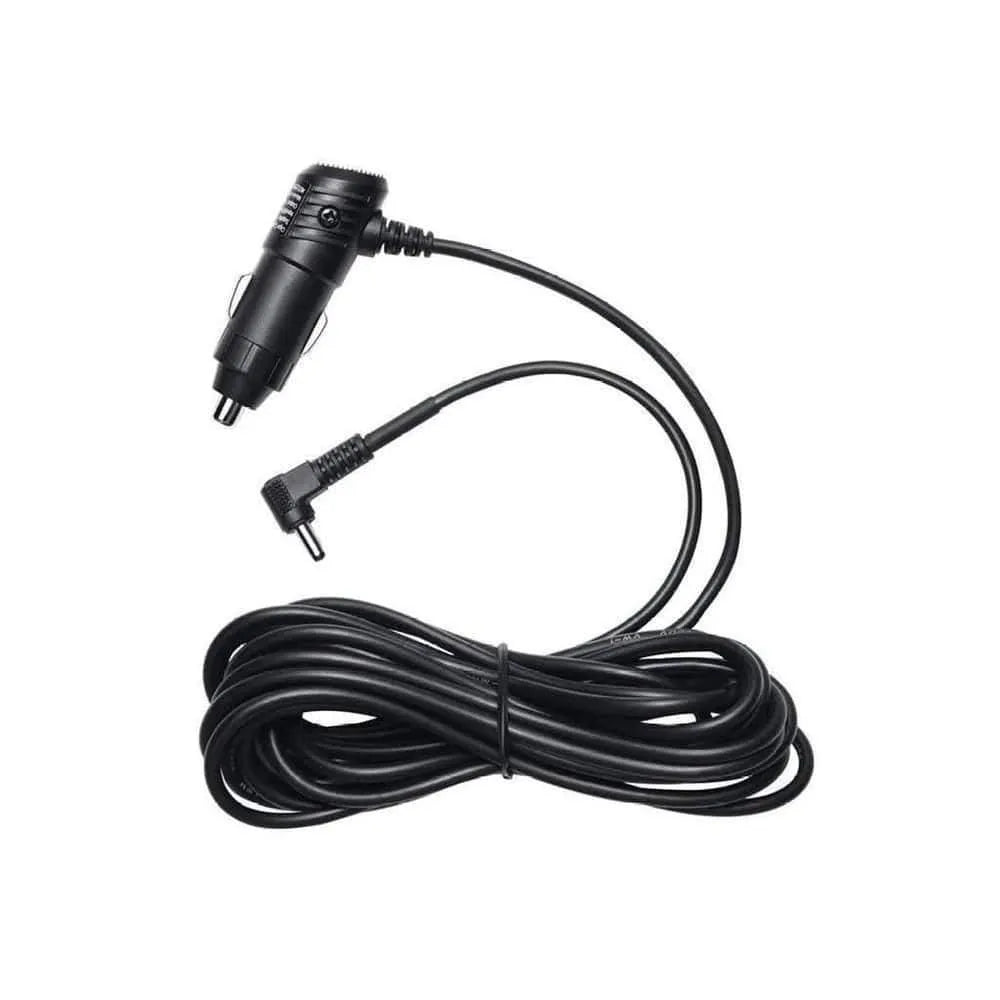
A compatible camera power cable
Start with your supplied adapter. If you need a replacement, match both the full camera model and connector. BlackVue’s power-cable model guide distinguishes X-series and older S-series cigarette lighter cables; they are not cross-compatible. Match the cable to your camera rather than choosing a BlackVue cable for VIOFO, Thinkware or a different BlackVue model.
Installation supplies
- The dash cam, its mount and a compatible memory card
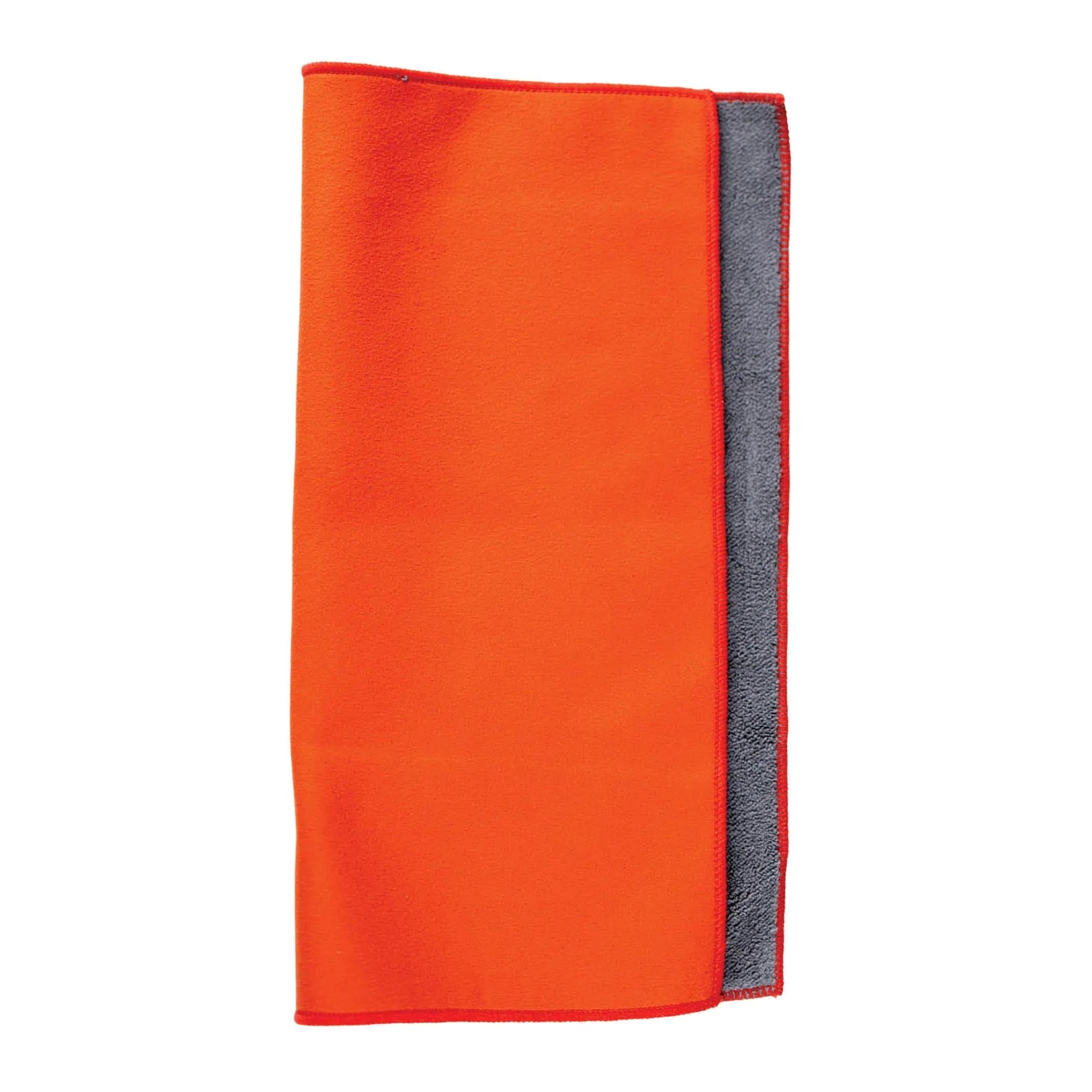
- A clean microfiber cloth and a cleaner suitable for the glass, tint and mount
- Cable clips or other securing items allowed by the vehicle and camera instructions
- The vehicle manual and the installation instructions for the exact camera
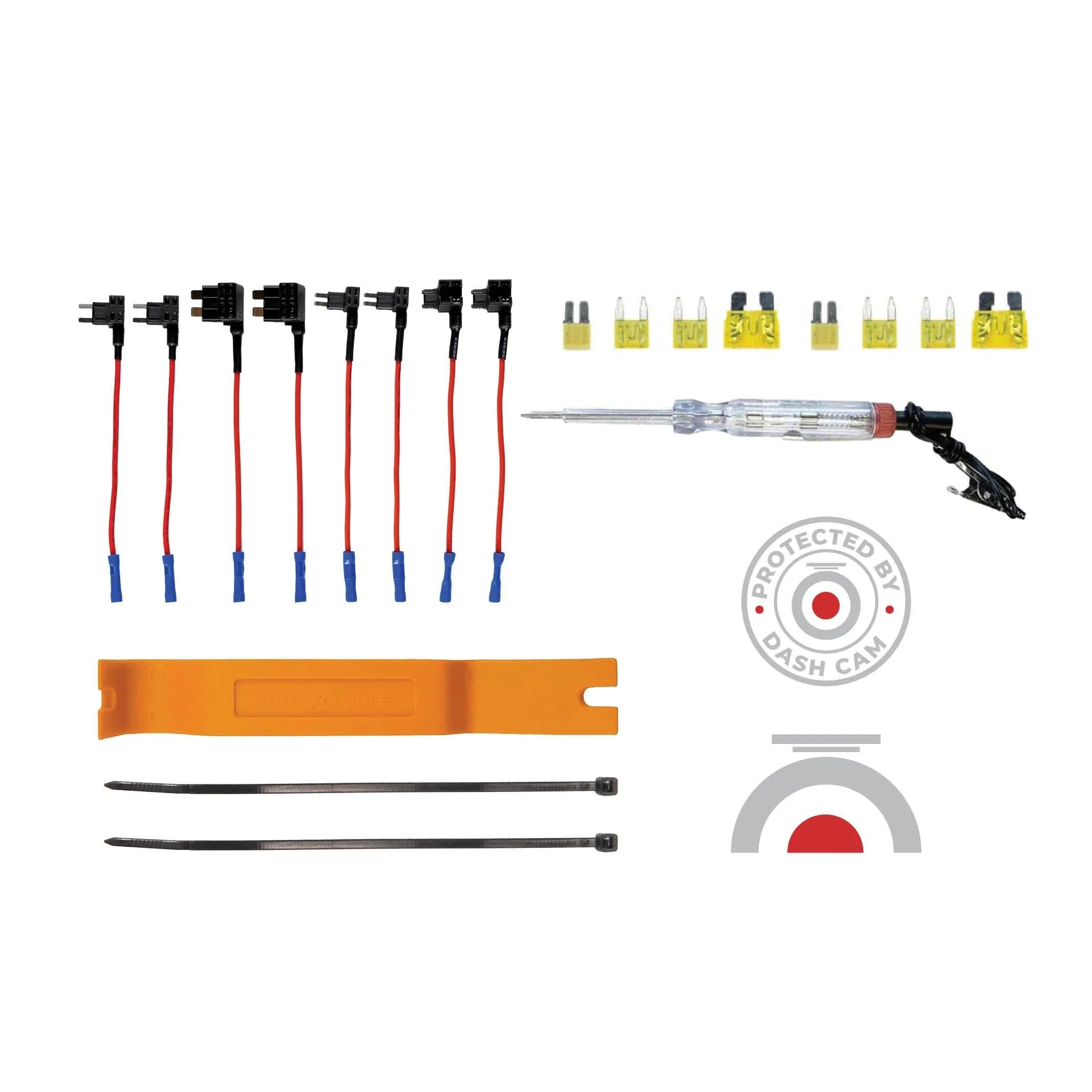
You do not need add-a-fuse taps or a circuit tester simply to plug an approved adapter into an accessory socket. A trim tool is only appropriate where the vehicle’s instructions allow trim access. If the route involves an airbag or an unfamiliar trim fastener, have an installer handle that part.
Keep socket installation supplies simple
The pictured kit includes fuse taps, fuses, a circuit tester, a trim tool and cable ties. Set the hardwiring supplies aside for a socket installation: plugging in a compatible adapter does not require them. Treat any hardwire work as a separate job.

Three steps to install a dash cam with a cigarette lighter adapter
Before you attach the camera, park safely, switch the vehicle off and plan your cable path. We recommend testing the camera with its supplied adapter before hiding the cable so you can isolate a connection problem more easily.
1. Mount the dash cam
Follow your camera’s mount instructions alongside this demonstration, and keep your vehicle’s airbag and windshield restrictions in view.

We suggest starting behind the rear-view mirror, where the camera often stays out of your driving view. The lens still needs a clear view through the swept area of the windshield. Leave room for the mirror, factory sensors, camera controls and cable connector.
Clean and dry the mounting area as the camera maker directs. Check whether your tint or glass coating permits an adhesive mount. If the camera supports a static mounting film, apply it and the mount in the specified order. VIOFO’s static-sticker installation instructions illustrate that arrangement; it is not a required accessory for every camera.
Use the pressure and curing time specified for your mount. Before you commit to the position, remove the lens protective film, adjust the angle and check the preview while parked. You should be able to see the horizon and nearby road.
2. Connect the power cable
Connect the approved cable to the camera’s designated power input, then seat the vehicle adapter firmly in the accessory socket. Some USB-powered cameras use a USB cable plus a separate car adapter. Do not connect a 12V feed directly to a camera designed for regulated USB power.
Set the vehicle to the operating mode permitted by its manual and check that the camera starts recording. If starting the engine is necessary, do so only in a suitably ventilated location. For a two-channel system, connect the rear camera as its manual directs and confirm both views.
If the camera does not start, check the socket’s operating mode, the connection at each end and the adapter’s stated compatibility. Check the camera’s own socket and cable even if your phone charges from another USB port. Stop if the adapter is damaged, unusually hot or smells burnt; do not open or splice it.
3. Route and secure the cable
Keep the power lead clear of the driver’s feet, pedals, steering controls, shifter and moving seat parts. Secure the cable without pulling on its connector or trapping it in a door. Leave the access needed to unplug the adapter and adjust the mirror.
We put a safe cable route ahead of a tidy finish. BlackVue’s mounting and cable-routing guidance says cables must not cross side-curtain airbags. Follow the vehicle’s trim and airbag instructions to identify a permitted route. Do not push a cable behind an A-pillar cover merely because there is a gap; get installation help if you cannot verify what is behind it.
Plan the rear camera’s cable route separately; a suitable front power route does not establish a safe rear route. Our SUV and hatchback rear-camera guide covers the extra planning for a moving liftgate.
Pillars are the structural supports around your vehicle’s windows. The A-pillars sit beside the windshield. B-pillars are typically between the front and rear doors; C-pillars are farther back, and some body styles have D-pillars. Use these names to identify the area, then follow your vehicle’s instructions for the cable path and airbag clearance.

What are the pillars?


Things to check before driving
- Confirm that the adapter’s input rating matches the vehicle socket and its output matches the camera. A higher socket current limit does not force that current into the camera; the connected load draws what it uses. Stay within the vehicle’s total accessory limit and do not install a larger fuse to cure an overload.
- Before your first drive, check the lens view, recording indicator, date and time while parked. We recommend playing back a short saved clip, including rear footage when fitted, so you know the camera is saving footage rather than simply receiving power.
- Switch the vehicle off and watch the camera after the vehicle’s documented accessory-power delay. Some sockets remain powered temporarily, so check your own socket rather than relying on the age of the car.
- Recheck that cables cannot fall into the controls or interfere with an airbag, and that opening a door or moving a seat does not pull on the installation.
If your cigarette lighter socket stays on
Battery drain and voltage cutoffs
For parking coverage, we recommend choosing a supported power arrangement before leaving your camera connected. An always-powered socket can keep drawing from the vehicle’s battery after parking. Battery condition, temperature, camera consumption and other vehicle loads affect how long it can supply that load, so a fixed battery-drain time is not a useful planning rule.
Check whether your exact camera and power accessory provide low-voltage protection; a cigarette lighter adapter does not necessarily include it. A configured cutoff or timer can limit use, but it cannot guarantee that every vehicle battery will restart the engine. Until you have a verified parking-power arrangement, unplug the camera from an always-powered socket when you park.

Power is different from a parking-mode signal
Some dash cams need separate battery and ACC signals to change modes. Others detect parking differently. A two-wire socket supply does not automatically provide a separate ignition signal, and an idle-time setting in one camera does not apply to every model.
For parking recording, we’ll help you match your camera to a supported hardwire, OBD or dedicated-battery arrangement. Confirm compatibility and settings, then play back actual saved parking clips to check the setup. Our parking-mode guide explains the recording options.

Choosing power for driving and parking
For driving footage, we recommend starting with an approved adapter on a suitable switched socket. If you want coverage while parked too, we can help match your camera’s power connection to your vehicle and parking routine for peace of mind on and off the road. A supported hardwire installation or a dedicated battery may fit that need.
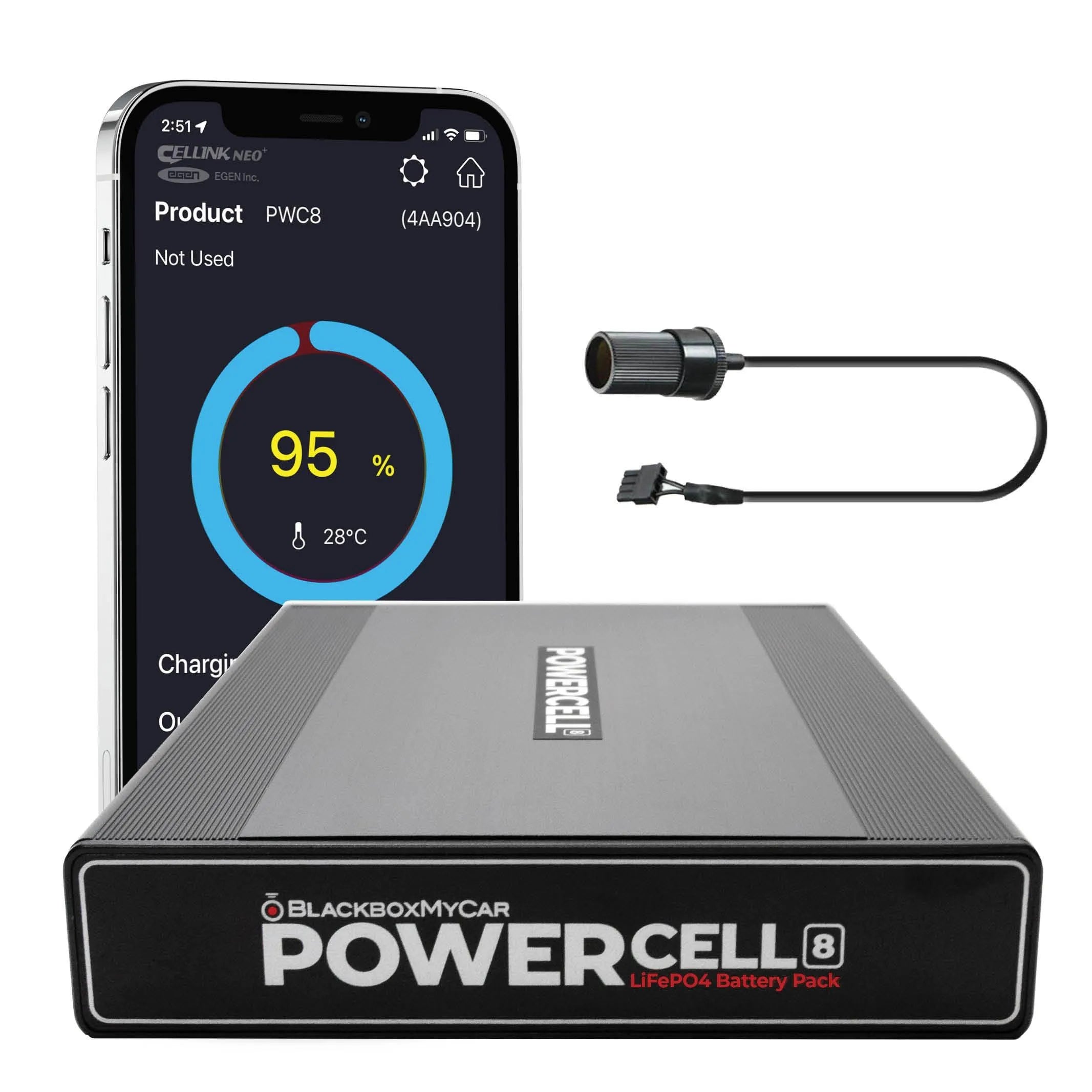
Our BlackboxMyCar PowerCell 8 is the dedicated battery pack we created for dash cams. It needs a supported vehicle charging connection and the correct camera-output cable. The PowerCell 8 manual calls for a switched charging supply. Plugging it into an always-powered socket does not automatically isolate it from the vehicle battery.
Plan battery capacity around your parking routine and allow enough driving time to recharge. Stored energy is finite, so a battery cannot guarantee continuous 24/7 recording. Our guides to dash cam battery packs versus USB power banks and battery installation through a cigarette lighter socket explain the planning checks.
View PowerCell 8 optionsIf you have a BlackVue B-130X battery pack, use its own instructions to match the charging input and camera-output cable. This example does not establish current availability.
Installation documentation
Get help with your power connection
We can help you choose a power connection that fits how you use your dash cam. Send us your camera model, vehicle year and model, a photo of the adapter label and whether your socket stays powered after shutdown. Tell us whether you want driving footage, parking recording or both, so we can guide you toward the right setup.
Contact Us